
Text Layer
The Text Layer feature in Loomix Configurator allows you to add customizable text elements to your product images. This feature is ideal for incorporating personalized messages, names, or any text-based customization that customers might want for their products.
Adding a Text Layer
Text layers can be included within a group or subgroup layer. Select the group or subgroup layer where you want to add the text layer.
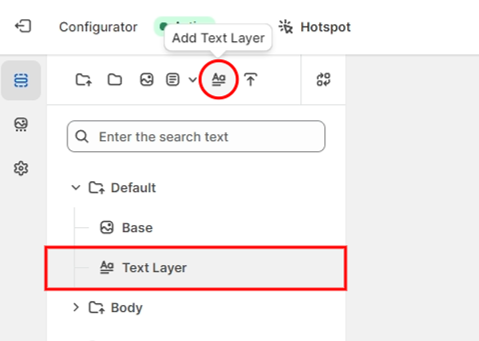
Click the text layer icon in the left sidebar. A placeholder text element will appear in the canvas area.
Positioning
Drag and drop the placeholder text element within the backend canvas area to position it on the product image.
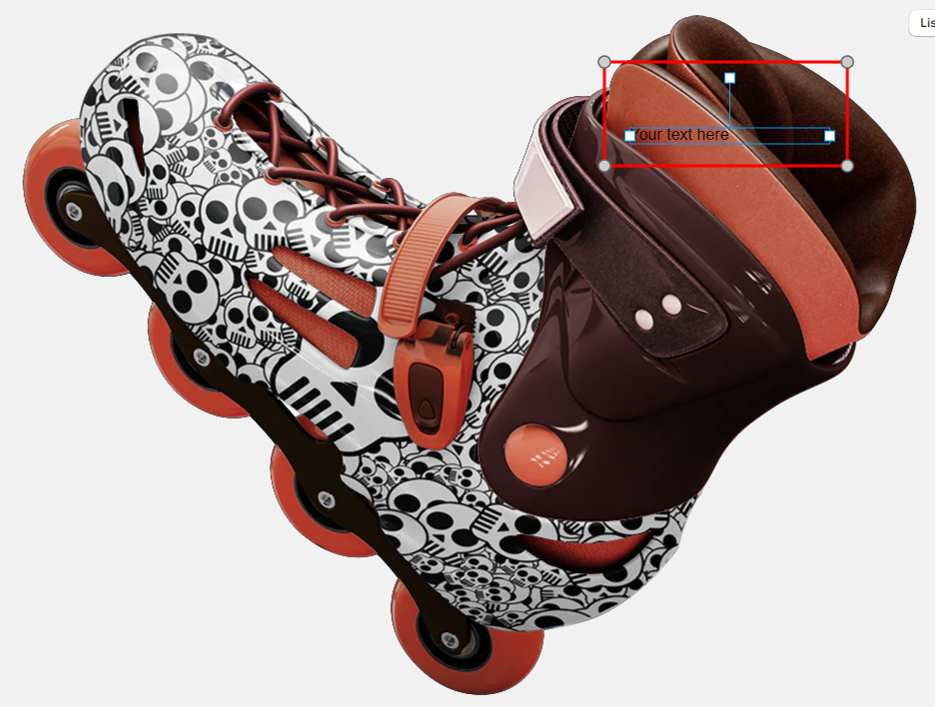
Unlike image layers, which are center-positioned by default, text layers can be freely repositioned to fit the design.
Adjust Settings
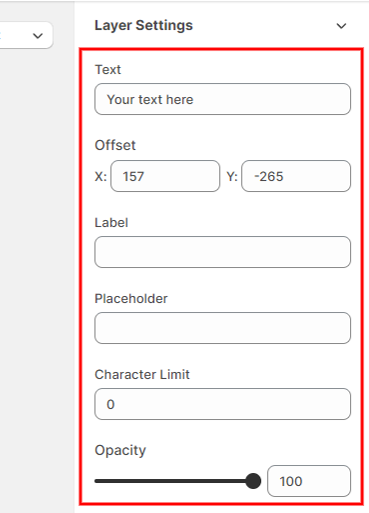
To configure the text layer, click on the text layer in the left sidebar. This will display the related settings in the right sidebar.
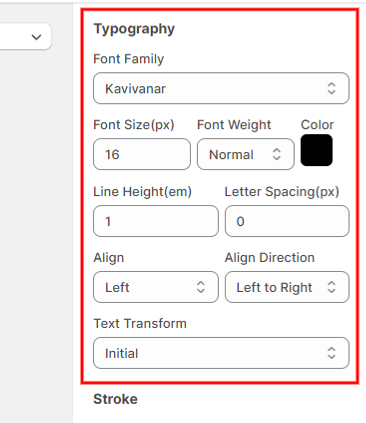
Typography Settings: Adjust font style, font size, font weight, line height, letter spacing, and text transform.
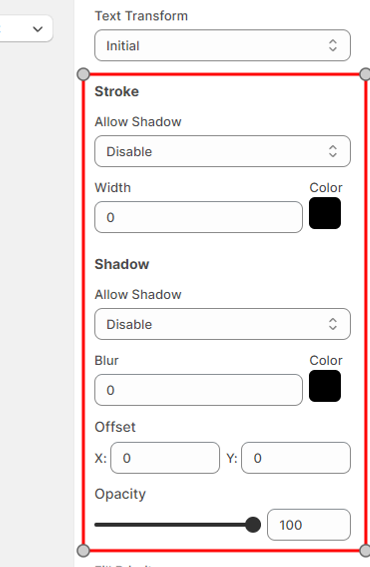
Stroke and Shadow: Apply stroke and shadow effects to enhance the text's appearance.
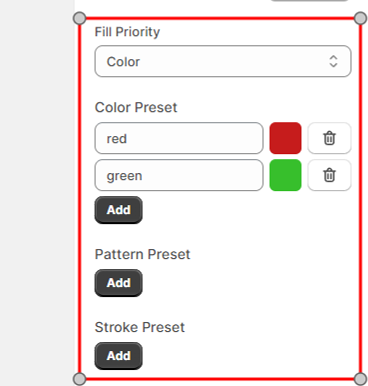
Presets: Set color, pattern, and stroke presets. These presets are visible on the front end and can be adjusted by users.
Front End Interaction
User Customization: Customers can enter their desired text into the text layer, which will immediately update the product preview.
Preset Adjustments: Users can modify the color, pattern, or stroke presets as set by the admin. Changes will be reflected in real-time in the product preview.
Layer Price Assign a price to the text layer. When customers activate the text layer by entering text, this price is added to the total product price.